Adaptive control software

Combine your inputs in one game-control setup

PlayAbility is a modular control toolkit for accessible gaming. Keep the controller, keyboard, mouse, switches, or adaptive equipment that already works for you. Add face gestures, head movement, voice commands, and other inputs for controls that are difficult to reach.

Map each input to a virtual gamepad, mouse, or keyboard action so the setup matches how you play.

Try PlayAbility

Choose your platform · No credit card

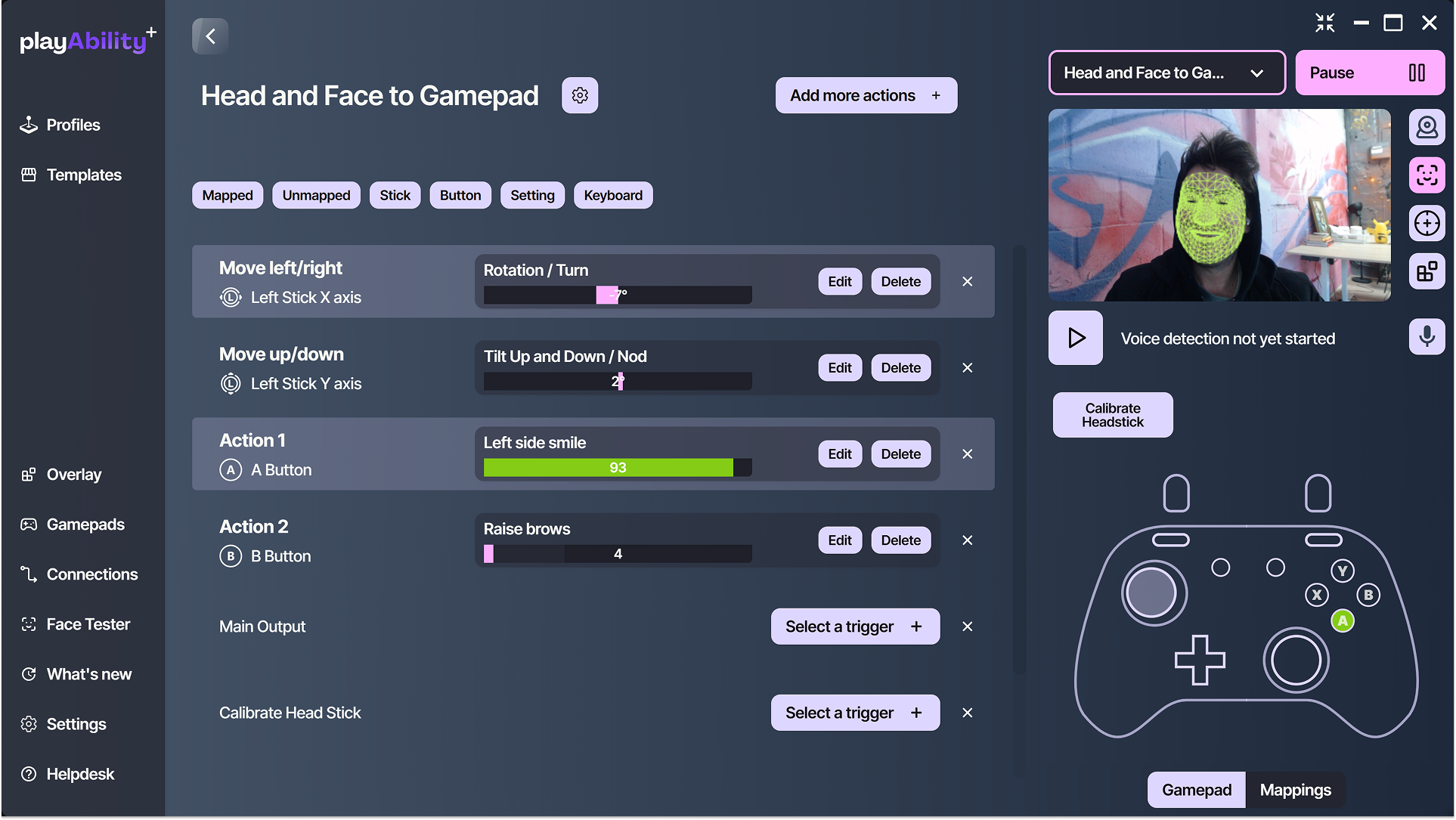
The PlayAbility mapping editor combining head movement and face gestures with a virtual gamepad

Choose how you control the game

Use the movements and devices that work for you

Use one input method on its own or combine several, based on the movements and devices you can use reliably.

1

Face gestures

Turn facial movements into game controls. A smile can become a button, raised eyebrows can trigger an action, and mouth movements can control commands. Gestures can also produce gradual analog input for actions such as steering or aiming.

  • Adjustable sensitivity
  • Analog or button input
  • Real-time detection
Explore face controls
2

Head movement

Use head turns, tilts, and leaning movements to control analog sticks, buttons, or the mouse cursor. Fine-tune each direction independently to match your range of movement.

  • Stick and mouse control
  • Directional calibration
  • Adjustable movement range
3

Voice commands

Assign spoken words or phrases to gamepad, keyboard, or mouse actions. Use voice for occasional commands such as reload or pause, or make it a larger part of your control setup.

  • Custom phrases
  • Multiple languages
  • Optional profile auto-start
Explore voice commands
4

Hand gestures

Use supported hand movements, including an open palm, fist, pinch, or steering motion, as additional controls. Choose the gestures that are comfortable and combine them with your other inputs.

  • Left or right hand
  • Gesture controls
  • Steering motion
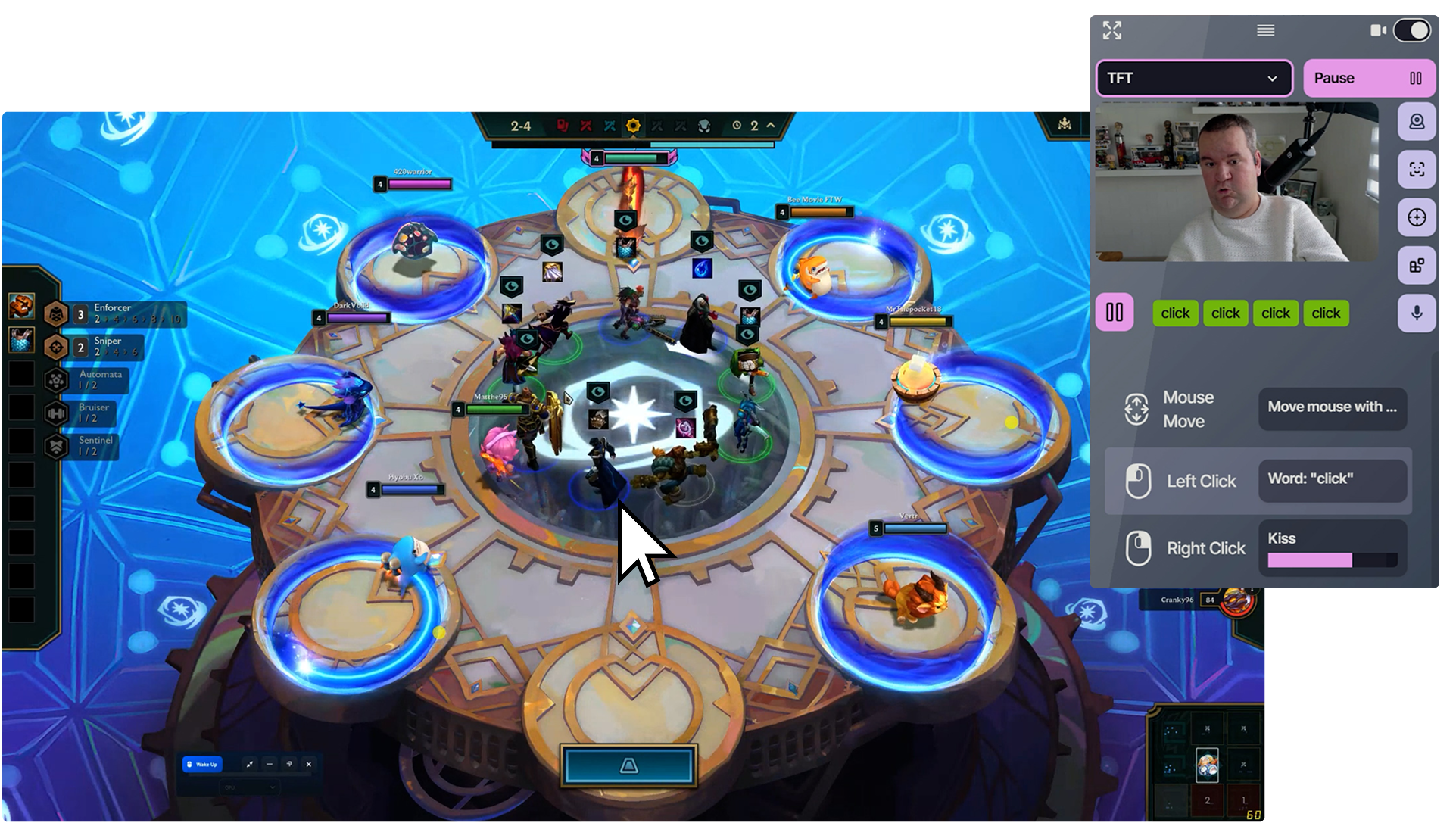
PlayAbility controlling the Windows mouse pointer through head tracking

Control the mouse without a mouse

Move, point, and click with your head

Use head movement to guide the Windows cursor, navigate menus, browse, or play mouse-based games. Cursor stabilization reduces jitter, and directional speed settings control how quickly the pointer moves.

When clicking is difficult, dwell click can select an item automatically after the cursor rests over it. You choose how long it waits before clicking.

  • Cursor stabilization
  • Adjustable speed
  • Dwell click
  • Edge-hold mode
Explore Head Mouse

Use your existing equipment with PlayAbility

Bring the controls you already use into one setup

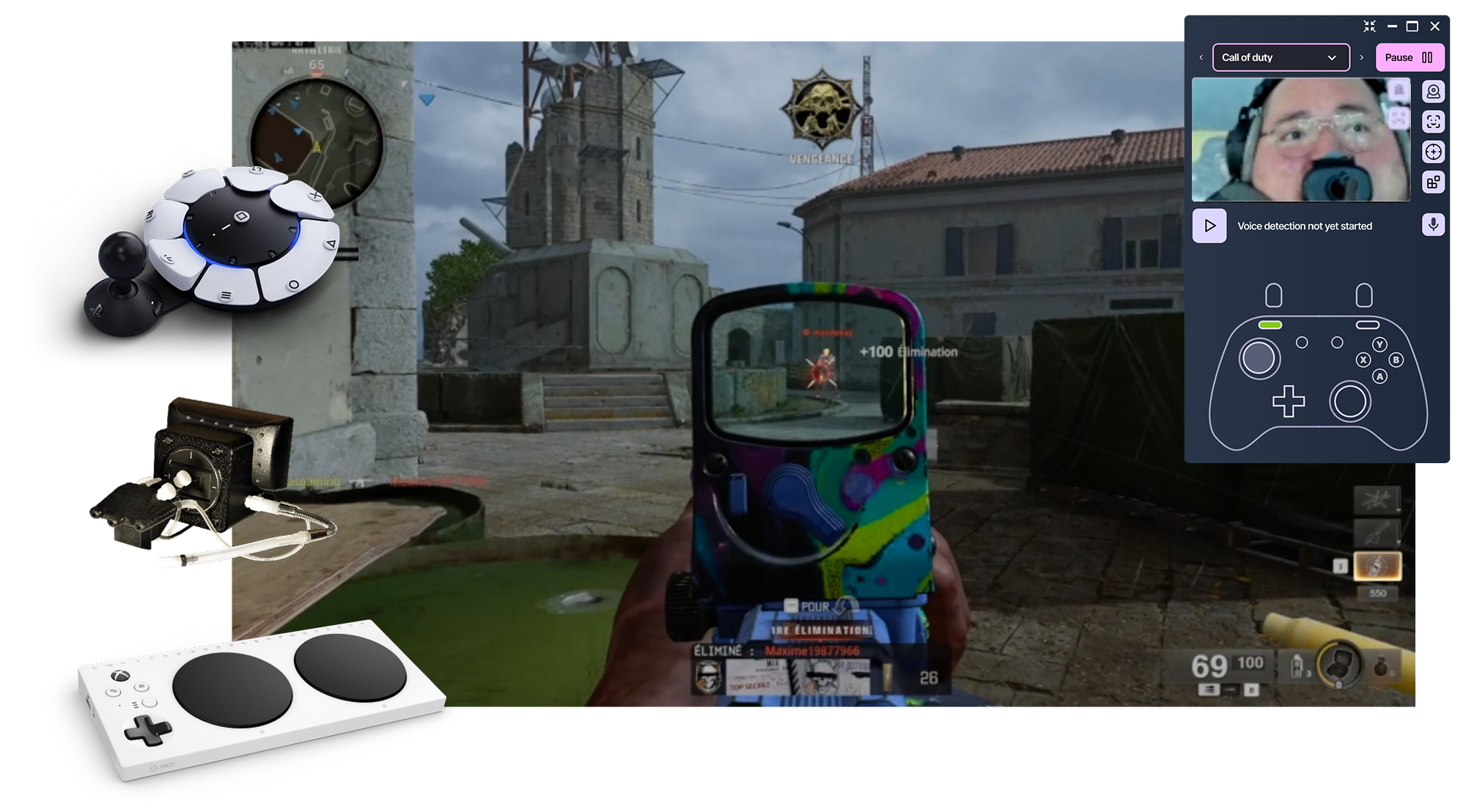
PlayAbility can combine supported controllers, keyboards, mice, joysticks, pedals, switches, and adaptive devices. Continue using the inputs you can reach.

Add face gestures, head movement, voice commands, or another connected input for the remaining actions. PlayAbility sends the combined inputs through one virtual controller output.

Call of Duty played with a QuadStick and PlayAbility controls

Examples

  • Steer with a physical joystick and use facial gestures for shoulder buttons.
  • Keep movement on a controller and use voice for commands you cannot reach.
  • Combine adaptive switches with head movement for aiming or camera control.
  • Use pedals for one group of actions and PlayAbility inputs for the rest.

Map supported inputs to game actions

Configure mappings in one visual editor

Choose an input, select what it should control, and adjust how it behaves. The Mapping editor keeps each connection visible so you can review and change it.

Map supported inputs to:

  • Virtual gamepad buttons, sticks, triggers, and D-pad controls
  • Keyboard keys and key combinations
  • Mouse movement, buttons, and scrolling
  • PlayAbility settings and profile actions

Filter mapped and unmapped controls, reorder entries, and tune each mapping independently.

The visual PlayAbility Mapping editor with configurable input and output rows
  • Visual mapping editor
  • Input-to-output routing
  • Search and filters
  • Per-control tuning

Configure each control

Choose how each mapping activates

Configure each mapping to match the action, the game, and your movement.

1

Combine inputs

Use AND/OR logic when an action should respond to more than one source. Allow either a voice command or gesture to trigger the same action, or require two inputs together to reduce accidental activation.

2

Trigger several actions at once

Assign a keyboard combination or a sequence of simultaneous controls to one input. This can make complex shortcuts or hard-to-reach combinations easier to use.

3

Choose the activation style

Set an action to hold, toggle, short press, long press, or double press. Adjust timing and thresholds for each mapping rather than applying one behavior to the entire profile.

Tune movement and trigger detection

Adjust smoothing, thresholds, and timing

Movement smoothing can reduce cursor or control jitter while preserving responsiveness. Detection rules can require a gesture to be held, repeated, or performed while facing the camera before an action activates.

These settings can be adjusted per mapping, helping you account for involuntary movement, changing posture, lighting, or different play sessions.

  • Movement smoothing
  • Hold duration
  • Multiple-detection rules
  • Adjustable thresholds

Save separate setups as profiles

Profiles, templates, and sharing

Customize one editable profile in Free. With Pro, keep separate editable profiles for different games, devices, or control needs, and duplicate or rename them as your setup changes. The Global profile lets you keep shared controls available alongside your active profile.

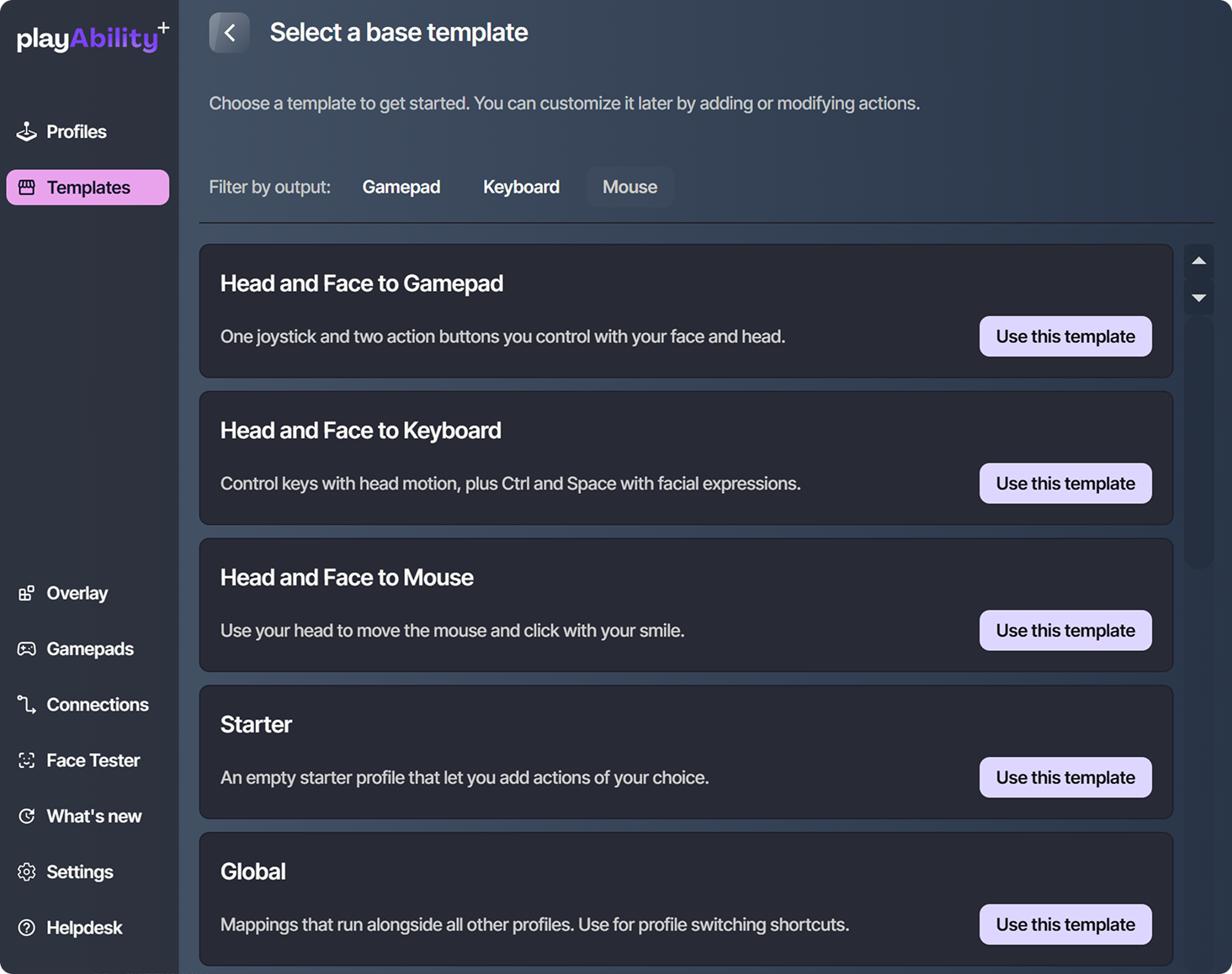
Start from a template and refine its mappings. Both editions support community profile sharing with an account; Free users can import controls into their editable profile or replace it. Pro also lets you export and import mapping profiles as a local file.

  • Multiple profiles
  • Starter templates
  • Quick switching
  • Import, export, and sharing

Free requires an account and internet connection. Local profile-file exports do not include overlay layouts or device settings. Automatic sync between computers is not currently available.

PlayAbility starter profile templates for different games and control methods
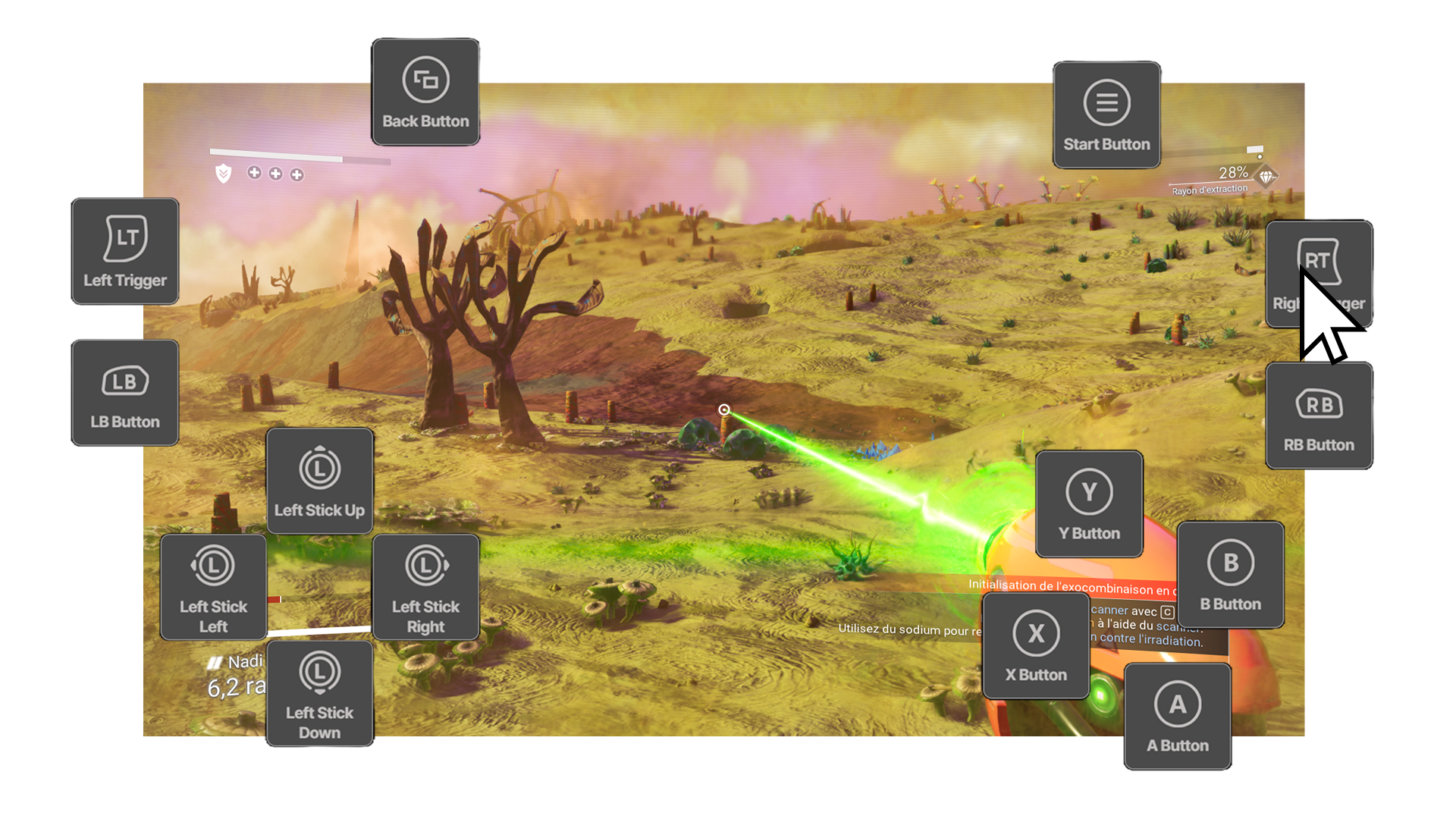
A transparent PlayAbility on-screen overlay with virtual buttons and analog controls

Put controls on screen

A configurable overlay for buttons and sticks

Open a transparent overlay with visual buttons and analog controls. Choose which display it appears on, start it automatically with a profile, or let mouse clicks pass through the overlay to the game underneath.

The overlay can provide visual feedback, make controls easier to access, or support a setup that uses on-screen interaction alongside other inputs.

  • Visual controls
  • Display selection
  • Profile auto-start
  • Click-through mode

Connect beyond a standard PC setup

Use your PC as the control hub

PlayAbility runs on your computer and can connect mappings to supported console, streaming, adaptive hardware, and network-based setups.

Advanced integrations

Connect PlayAbility to streaming tools and external software

Streamers, developers, and technical users can send actions into PlayAbility or use its outputs in other software.

Twitchat and chat commands

Connect supported Twitchat commands to mapped actions for interactive streams. Use profile and connection controls to decide which actions viewers can trigger.

WebSocket input and output

Connect trusted applications on the same computer to send controls, read output state, and automate supported settings. See the developer documentation for authentication, permissions, and current limitations.

MCP server

Enable the Model Context Protocol server to let compatible external assistants interact with supported PlayAbility settings and controls. Configuration details belong in the developer documentation.

Read Integration Documentation

Build your setup one control at a time

Start with PlayAbility Free and build a setup around your movements, devices, and games. You can refine your mappings, add more equipment, and upgrade when you need additional profile options.

Choose your platform · No credit card