Controls that work for you

PlayAbility on Nintendo Switch

Bring your PlayAbility controls to Switch and Switch 2. Set up your controls on a Windows PC, then send them to your console through a small receiver.

All connections require PlayAbility running on a Windows PC.

Get the Windows app
Find your way to play
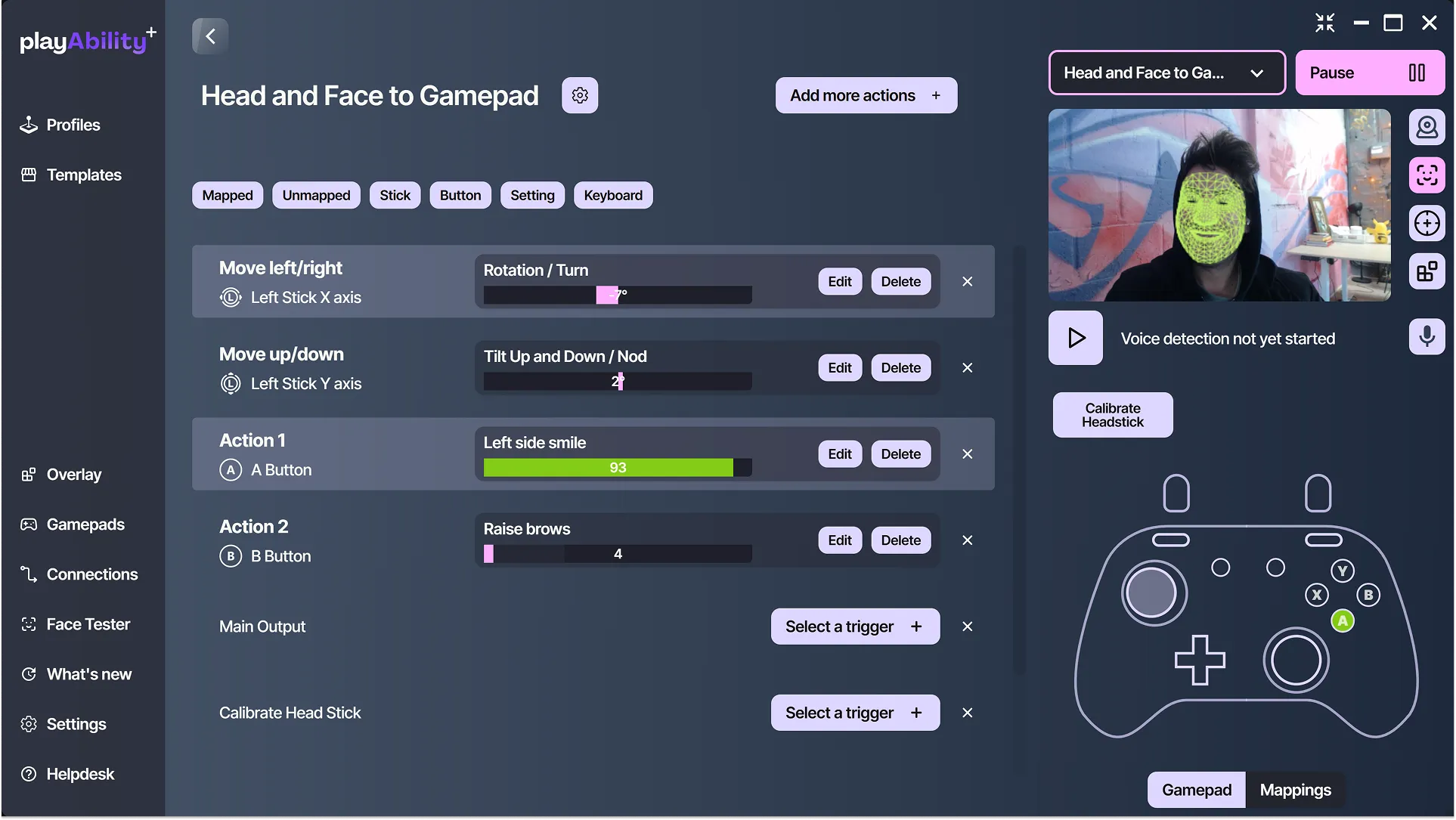
PlayAbility profile mapping head rotation to a joystick and facial expressions to gamepad buttons.
Build your controls in PlayAbility. Windows app shown.

Find your way to play

Start with the connection that fits your equipment. Each guide walks you through the setup.

8BitDo Micro

Simplest setup

The Micro connects to your PC by USB and sends your controls to the Switch over Bluetooth.

Your controls, from PC to game

  1. Windows PC · PlayAbility
  2. USB → 8BitDo Micro
  3. Bluetooth → Switch / Switch 2

What you need

  • 8BitDo Micro
  • USB-C data cable
  • PlayAbility firmware installed with the in-app updater

Before choosing

  • The Micro cannot wake the console.
  • Motion, vibration, and analog trigger values are not supported.
Open Micro setup guide
Where to get it

8BitDo Micro

Tested by PlayAbility

As an Amazon Associate I earn from qualifying purchases.

Pico receiver

A Pico W or Pico 2 W receives your controls over Bluetooth and sends them to the Switch by USB.

Your controls, from PC to game

  1. Windows PC · PlayAbility
  2. Bluetooth → Pico receiver
  3. USB → Switch / Switch 2

What you need

  • Raspberry Pi Pico W or Pico 2 W
  • USB data cable
  • PlayAbility Switch firmware matching your Pico board

Before choosing

  • The receiver must stay powered and connected to the Switch by USB.
Open Pico receiver setup guide
Where to get it

Raspberry Pi Pico W

Tested by PlayAbility

Raspberry Pi Pico 2 W

Tested by PlayAbility

As an Amazon Associate I earn from qualifying purchases.